Gmail AI Overviews Summarize Recall Emails, So Keep It Plain
Key takeaways
- Gmail AI Overviews answer a question typed into the inbox search bar with a generated summary.
- A patient searching for your practice may read Gemini's version of your emails instead of the original.
Gmail AI Overviews answer a question typed into the inbox search bar with a generated summary. A patient searching for your practice may read Gemini's version of your emails instead of the original. What survives is plain fact: a date, an action, a phone number, a named clinician. Write those facts in text, then publish the same sentences as a post Google Search can show to strangers too.
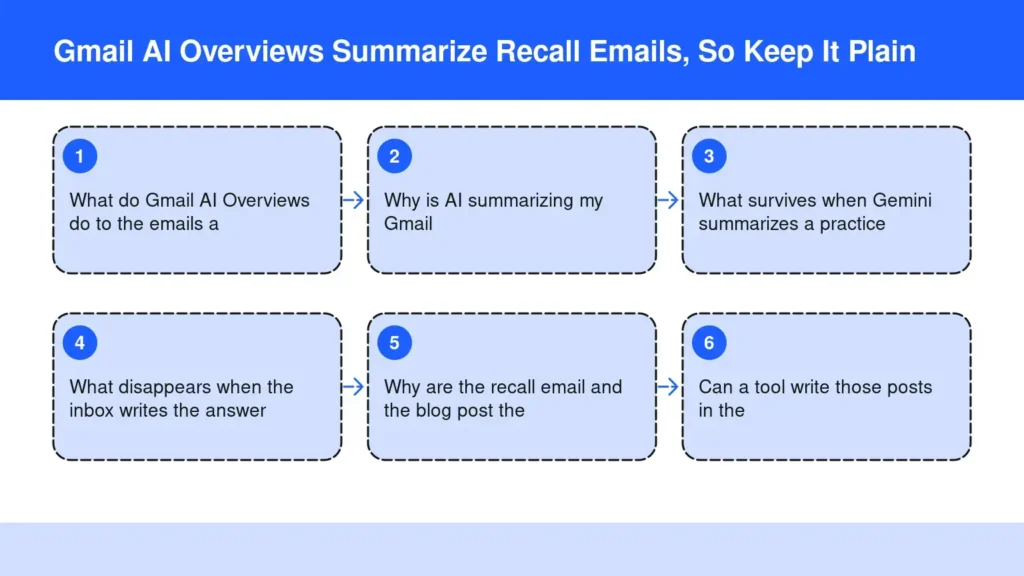
What do Gmail AI Overviews do to the emails a practice sends?
Gmail AI Overviews turn a patient’s inbox into an answer engine: they type a question, and Gemini writes a personalized reply based on your emails. Google says the feature gives concise summaries and answers to paid users around the world whose inbox language is English.
Those summaries pull context from across multiple conversations, so your recall notice, hours change, insurance update and newsletter all become raw material. Google’s own example has a user asking which plumber quoted a renovation, found in a year of mail.
For Workspace accounts, the feature is on by default once an admin has Gemini and Workspace Intelligence turned on. The patient never has to ask for it.
Why is AI summarizing my Gmail?
AI summarizes your Gmail because smart features are on, and a summary is now the first view of a long thread. Thread summaries reach all users globally, free accounts included.
That help page says Gemini can generate an overview of key points and let you create a reminder for a task with a due date. A recall email with a clear deadline can become a patient’s reminder. A vague one gives the tool nothing to remind anyone about.
To stop it in your own inbox, the instructions run through See all settings to the Workspace smart feature settings. That also switches off other tools, like the side panel.
What survives when Gemini summarizes a practice email?
The facts a patient can act on survive, because a summary can repeat them without your voice.
- A date. When the recall is due, or when new hours start.
- An action. Book, call, bring the new insurance card.
- A phone number. Typed in the body, not only in a footer image.
- A named clinician. Patients search for the person they see.
Give each its own short sentence near the top. Wrapped in pleasantries, the date leaves the summary guessing.
What disappears when the inbox writes the answer?
Tone, hedging and anything buried below a graphic disappear first. A summary has no room for an office manager’s warmth.
A hedge like “we may see you sooner, depending on cancellations” is honest, but a short answer tends to keep the claim and drop the condition. If the condition matters, give it a sentence of its own.
Graphics are the quiet loss. Even in Google Search, the guidance treats images as support for textual content, not a substitute. Put the new hours in a sentence above the banner, and let the banner decorate.
Why are the recall email and the blog post the same job?
The email and the published post are the same sentences doing two jobs. The email answers patients on your list; the post is the copy Google can quote to strangers.
In Google Search, AI Overviews surface relevant links to pages on the web. If your answer is not on your site, the link goes to someone else’s page. That is how a practice loses patients over content you never published.
Write the sentence once and use it twice. Skip a page for every variation; Google warns that doing so to manipulate AI responses breaks its scaled content abuse policy. Your front desk questions are the list.
Can a tool write those posts in the practice's own voice?
Yes, if it starts from facts the practice already states and keeps the voice of the person stating them.
I was a strength and conditioning coach for the Toronto Blue Jays, the Tampa Bay Buccaneers and the University of South Florida. I am co-founder and Chief of Human Performance at Functionised, with FIT Clinic, FIT Lab and FIT Stretch in Colts Neck, Tinton Falls and Seabrook.
Our first app, Blog & Social Posts Done for You, runs on my own four sites. The category is a WordPress plugin designed to decide what to publish and write it in your voice. Every figure in a post links to its source, and the plugin publishes and shares the post. That covers what practices must publish to be found by AI answer engines.
Frequently asked questions
How do I get AI for Gmail?
Most of it is already in the account. Google says Help Me Write and Suggested Replies are rolling out to everyone at no cost. Asking your inbox questions needs a paid plan; the eligible list includes Business Starter, Standard and Plus, and Google AI Plus, Pro and Ultra for personal accounts.
Most of it is already in the account. Google says Help Me Write and Suggested Replies are rolling out to everyone at no cost. Asking your inbox questions needs a paid plan; the eligible list includes Business Starter, Standard and Plus, and Google AI Plus, Pro and Ultra for personal accounts.
Can Gemini send emails?
Gemini drafts emails, while you decide whether to send them. The help page shows the flow: open Compose, tap Help me write, enter a prompt. Google describes Suggested Replies as drafts in your tone that you refine before giving your approval, so sending stays a human decision.
Gemini drafts emails, while you decide whether to send them. The help page shows the flow: open Compose, tap Help me write, enter a prompt. Google describes Suggested Replies as drafts in your tone that you refine before giving your approval, so sending stays a human decision.
How do I turn on AI Assistant on Google?
On a computer, click Ask Gemini at the top right of the inbox. The help page says the panel can summarize threads, draft new messages and organize mail, including adding labels. Both smart features settings need to be on first.
On a computer, click Ask Gemini at the top right of the inbox. The help page says the panel can summarize threads, draft new messages and organize mail, including adding labels. Both smart features settings need to be on first.
Why don't I see an AI Overview when I search my inbox?
The overview stays hidden whenever you use search operators. Gmail Help names is:unread and from: as examples that switch it off. Type a plain-language question instead, such as when the office changes its hours, and press Enter to get the summary.
The overview stays hidden whenever you use search operators. Gmail Help names is:unread and from: as examples that switch it off. Type a plain-language question instead, such as when the office changes its hours, and press Enter to get the summary.
Can a practice stop patients' inboxes from summarizing its messages?
No. The setting belongs to each reader’s account, not the sender, so the practice controls only its words. That is the useful part: clear dates, actions, numbers and names make a better summary for the patient, and the same lines make a better public post.
No. The setting belongs to each reader’s account, not the sender, so the practice controls only its words. That is the useful part: clear dates, actions, numbers and names make a better summary for the patient, and the same lines make a better public post.
The Bottom Line
Open the last recall email your office sent and read it as the machine will. Find the date, the action, the phone number and the clinician’s name in plain text near the top. Rewrite any line hiding in a banner or a hedge, then publish it so Google Search has it too.
A recall email gets read once; a published post keeps answering. That is why your content should stop waiting on you.
Start free for 14 days
Sources
- Google Workspace Updates: Gmail Search’s AI Overviews now available globally
- Google Workspace Updates: Search faster and smarter with AI Overviews in Gmail search
- Get an AI Overview in Gmail search – Gmail Help
- Catch up on email threads with AI Overview conversation summaries – Gmail Help
- Collaborate with Gemini in Gmail – Gmail Help
- Draft emails with Gemini in Gmail – Gmail Help
- Gmail launches AI features like AI Overviews and more – Google blog
- How to use Gemini in Gmail to manage your inbox like a pro – Google blog
- AI features and your website – Google Search Central
- Optimizing your website for generative AI features on Google Search – Google Search Central